Google Sheets Checkbox: Change the Row Color When It's Checked
Quick answer
Select the whole table without the header (for example A2:D11), open Format → Conditional formatting, choose "Custom formula is" and type =$D2=TRUE, where D is your checkbox column. Pick a fill color. A ticked box is TRUE, so every ticked row changes color.
You have a list — sales, tasks, bills — with a checkbox in one column, and you want the whole row to change color when it's ticked, not just the box. Google Sheets does this with conditional formatting and one short formula.
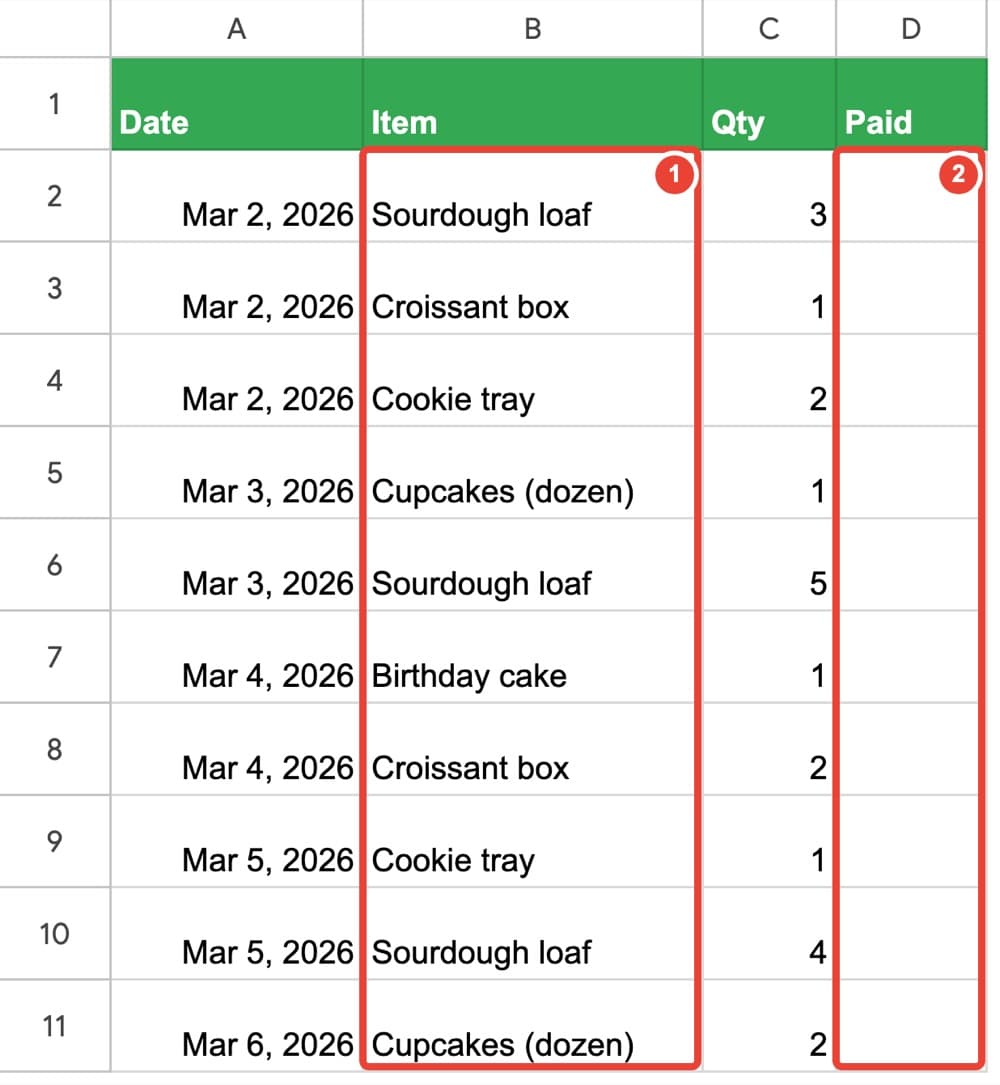
Add the checkboxes
Select the cells that should get a box (in our example D2:D11, a Paid column), then choose Insert → Checkbox. Click a box to tick it; click again to untick.
You only see the box, but underneath Google Sheets stores a ticked box as TRUE and an empty one as FALSE. Click a cell and look at the formula bar to see it. That hidden TRUE is what the color rule uses.
Free: which spreadsheet problem do you have?
A 6-page PDF: ten everyday Google Sheets problems and the short book that fixes each one.
Get the free overviewColor the whole row when it's checked
- Select the whole table without the header row — in our example A2:D11. Select every column you want colored, not just the checkbox column.
- Choose Format → Conditional formatting.
- Under "Format cells if…", choose "Custom formula is".
- Type this formula exactly:
=$D2=TRUE - Under "Formatting style", pick a light green fill, then click Done.
Tip: Tick D2 and the whole of row 2 turns green. Untick it and the color goes away.
Why the $ matters
For every row, Google Sheets looks at column D of that same row. The $ in front of D keeps the rule on column D; the row number has no $, so it moves down with each row.
Only the checkbox turns green, not the row? You selected only column D before adding the rule. Select the whole table and add the rule again. Nothing turns green? Check the formula letter by letter: a $ before D, and no $ before 2.
The green row is the easy part
A colored row tells you which sales are paid. It doesn't tell you how much is still owed, which item sells best, or whether the total at the bottom still adds up after someone types "B-day cake" instead of "Birthday cake".
Those answers come from how the whole sheet is set up: a dropdown so items are picked instead of typed, real dates and numbers, totals with SUM, AVERAGE, MIN and MAX, and a summary that fills itself as you type sales. That is what Google Sheets for Absolute Beginners builds, one short chapter at a time, using a small bakery's paper sales notebook.
Common questions
- Only the checkbox turns green, not the whole row. Why?
- You selected only the checkbox column before adding the rule. Select the whole table (for example A2:D11) and add the rule again.
- Nothing turns green. What's wrong?
- Check the formula letter by letter: =$D2=TRUE, with the $ before D and no $ before 2.