Google Sheets: Apply a Formula to the Whole Column Without It Breaking
Quick answer
Use the $ sign to lock the cell that should stay the same. For example, if your tax rate is in Settings!B1, write =E2*(1+Settings!$B$1) and drag it down. The $ keeps B1 locked; E2 moves to E3, E4 and so on.
You write a formula that works in one row, drag it down to copy it to the others, and suddenly row 3 shows the wrong answer. The reason is that every cell in the formula moves down when you drag, even the ones that shouldn't. The $ sign fixes this.
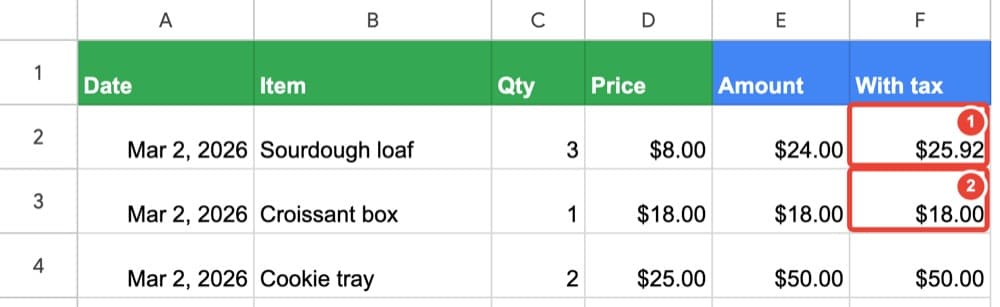
Why the formula breaks when you drag it down
When you drag a formula from row 2 to row 3, Google Sheets moves every cell address down one row. If your formula is =E2(1+Settings!B1), it becomes =E3(1+Settings!B2). That's what you want for E2, but B1 is your tax rate — it shouldn't move to B2 (which is empty).
So row 3 adds 0% tax instead of 8%, and you get the wrong answer with no error message.
Free: which spreadsheet problem do you have?
A 6-page PDF: ten everyday Google Sheets problems and the short book that fixes each one.
Get the free overviewLock the cell with $
- Type the formula in row 2 with $ signs in front of the column letter and row number for the cell that should stay put.
=E2*(1+Settings!$B$1) - The $ before B means "don't move this column when I drag"; the $ before 1 means "don't move this row".
- Click the blue square at the bottom right of the cell and drag it down to row 11.
- Every row now adds the right tax. The formula in row 3 is =E3*(1+Settings!$B$1): only E2 moved to E3, while B1 stayed locked.
Quick way to add the $ signs
While typing a formula, put your cursor on the cell address you want to lock (for example B1) and press F4. It becomes $B$1 automatically. (On some laptops, use Fn+F4 instead.)
If you want to lock only the column (B stays, 1 moves), press F4 once more: $B1. Press it again to lock only the row: B$1.
One $ is the start of bigger control
The $ sign stops the wrong cell from moving when you copy a formula. But a sheet with scattered $ signs is hard to read and full of places where one small typo breaks everything.
Google Sheets for Absolute Beginners teaches you how to build tables that work instead: settings in their own cells, formulas organized in columns so you only write one and drag it down, and the $ sign as a tool you understand, not a magic character. The book walks you through every step with real data from a bakery.
Common questions
- Only row 2 is right; the others are wrong.
- You dragged the formula but forgot the $ signs. Type the formula again with $ in front of the column letter and row number: $B$1.
- Every row shows the same amount.
- You locked the wrong cell — maybe =E$2 instead of =E2. Only the tax cell (B1) needs the $, not the amount cell. E2 must move down with each row.
- F4 did nothing.
- On some laptops F4 needs the Fn key: press Fn+F4. Or just type the $ signs by hand.